Save links. Keep what matters within reach.
A recipe for later. A product to compare. An idea worth keeping. Save it in PagePin and organize it in a library that makes sense to you.
Free to use. No PagePin account required.
More than a place for articles.
Keep websites, videos, social posts, products, tools, and references together. PagePin helps you return to the things you saved, whatever they happen to be.
- Websites
- Videos
- Products
- Recipes
- Ideas
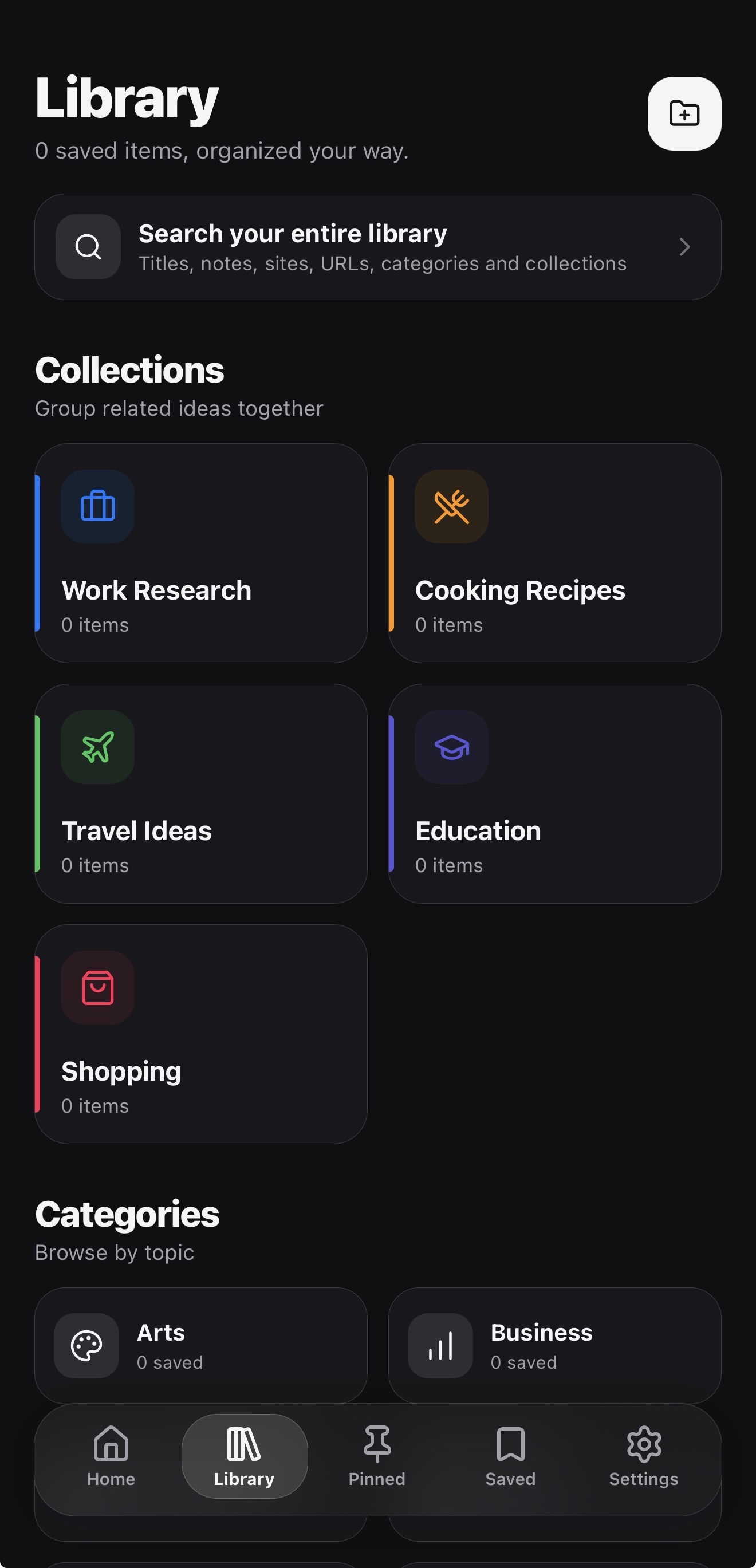
A library organized your way.
Save from wherever you find it.
Send a link to PagePin from the iOS share sheet, or paste a URL inside the app. Keep useful finds together instead of scattered across open tabs and messages.
Give everything a place.
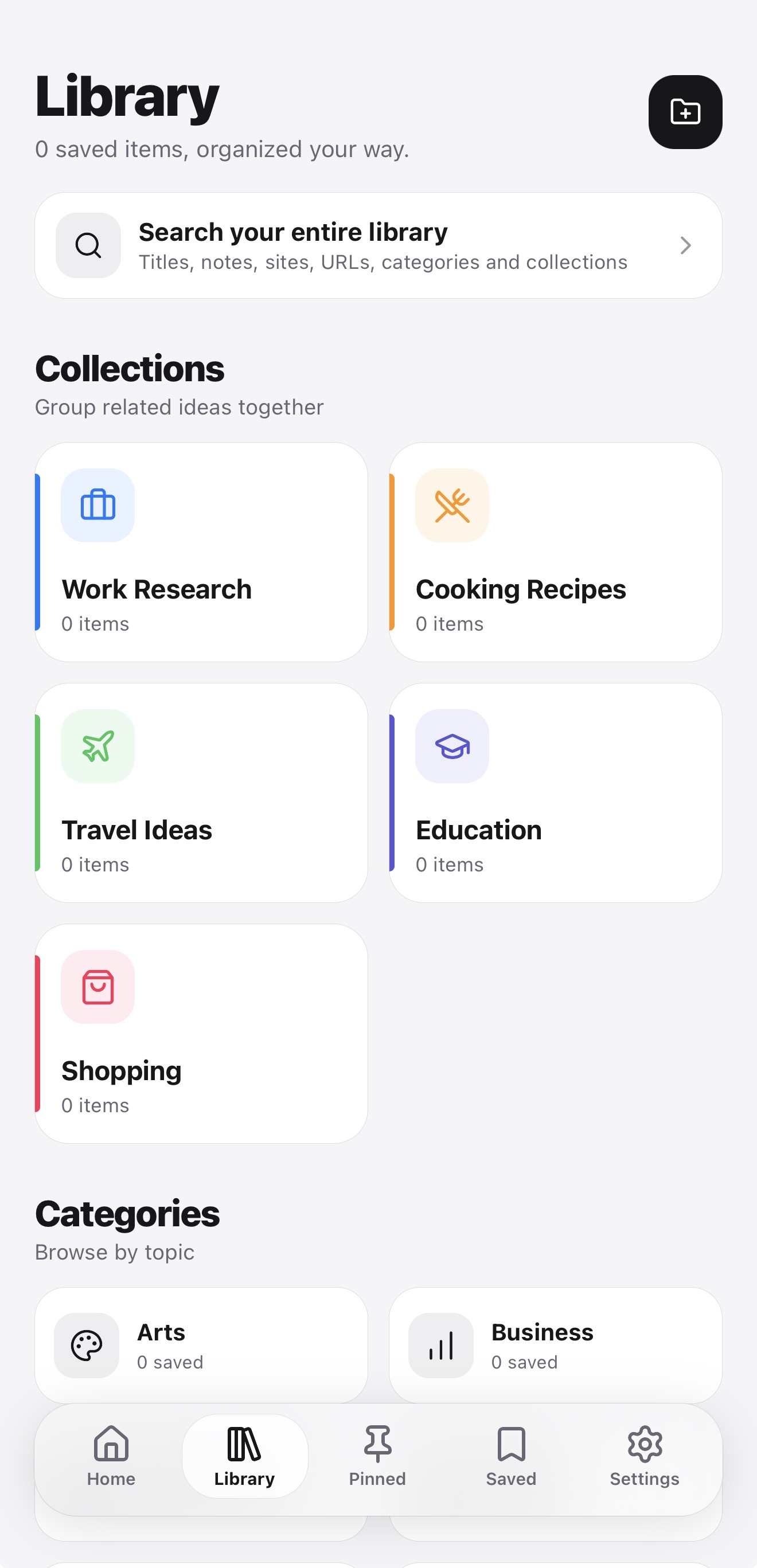
Group related links into Collections and sort them with Categories. Create your own categories and choose icons that make them easy to recognize.
Keep your priorities pinned.
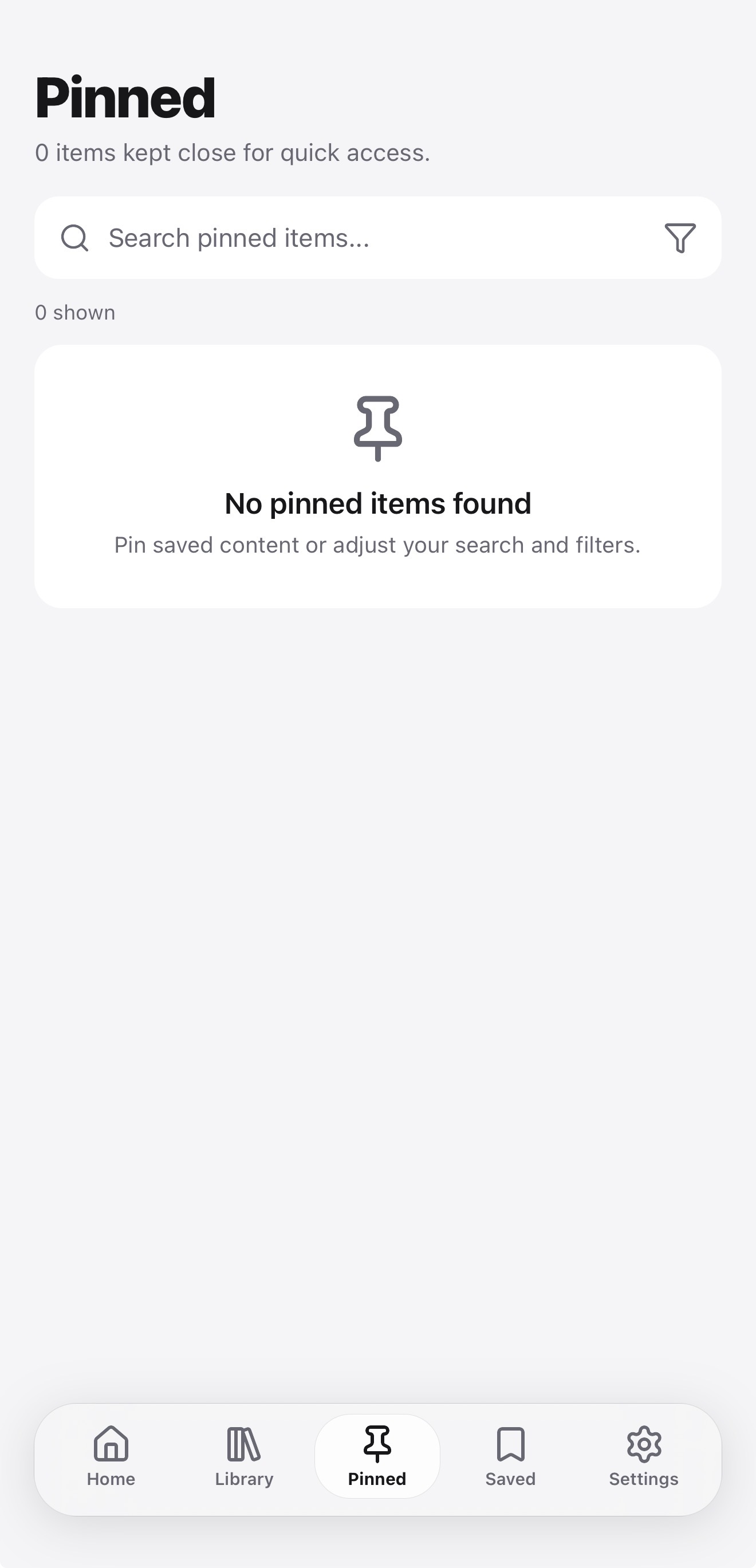
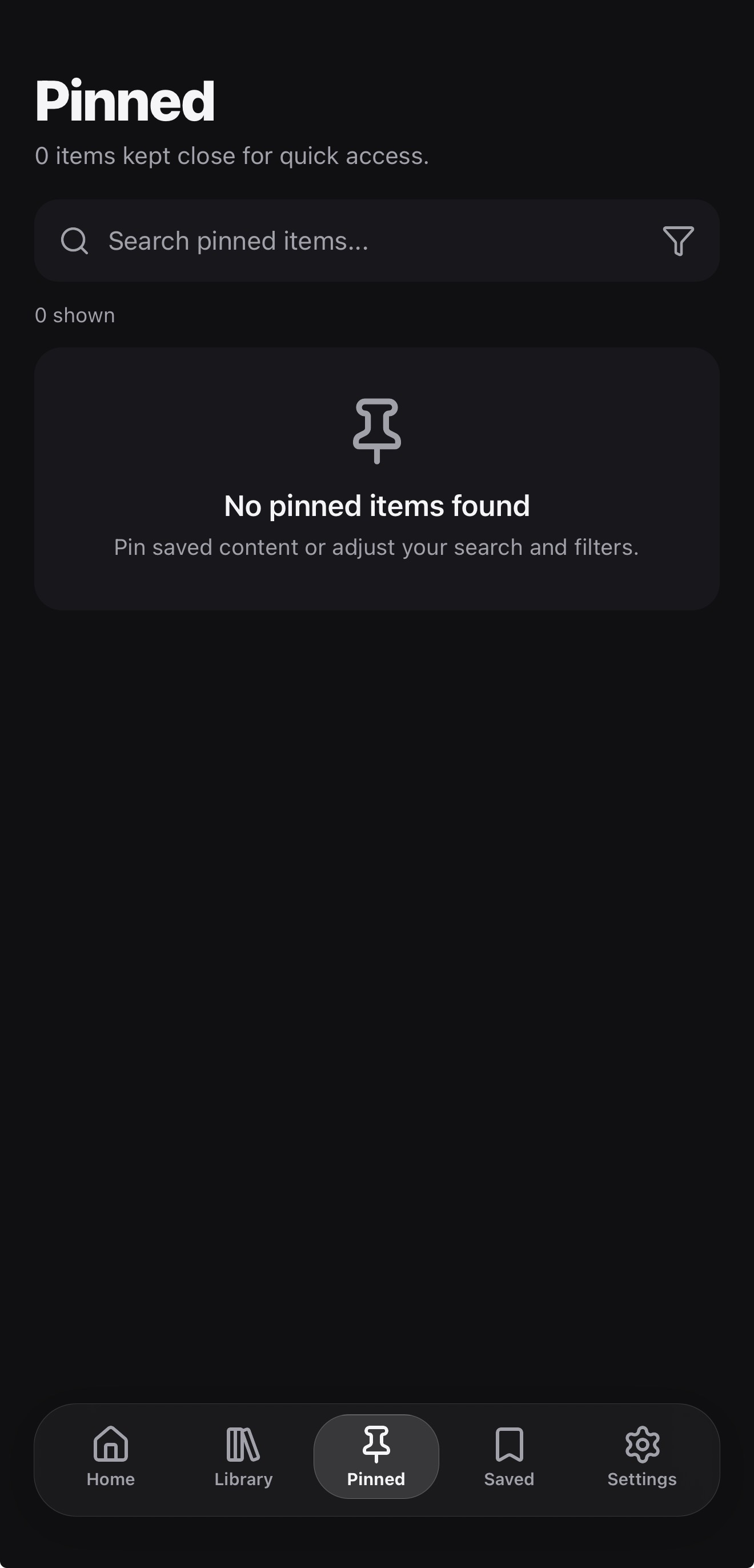
Pin the links you want close at hand. Your latest Pins appear on Home, and the Pinned tab brings them all together.
Find it when you need it.
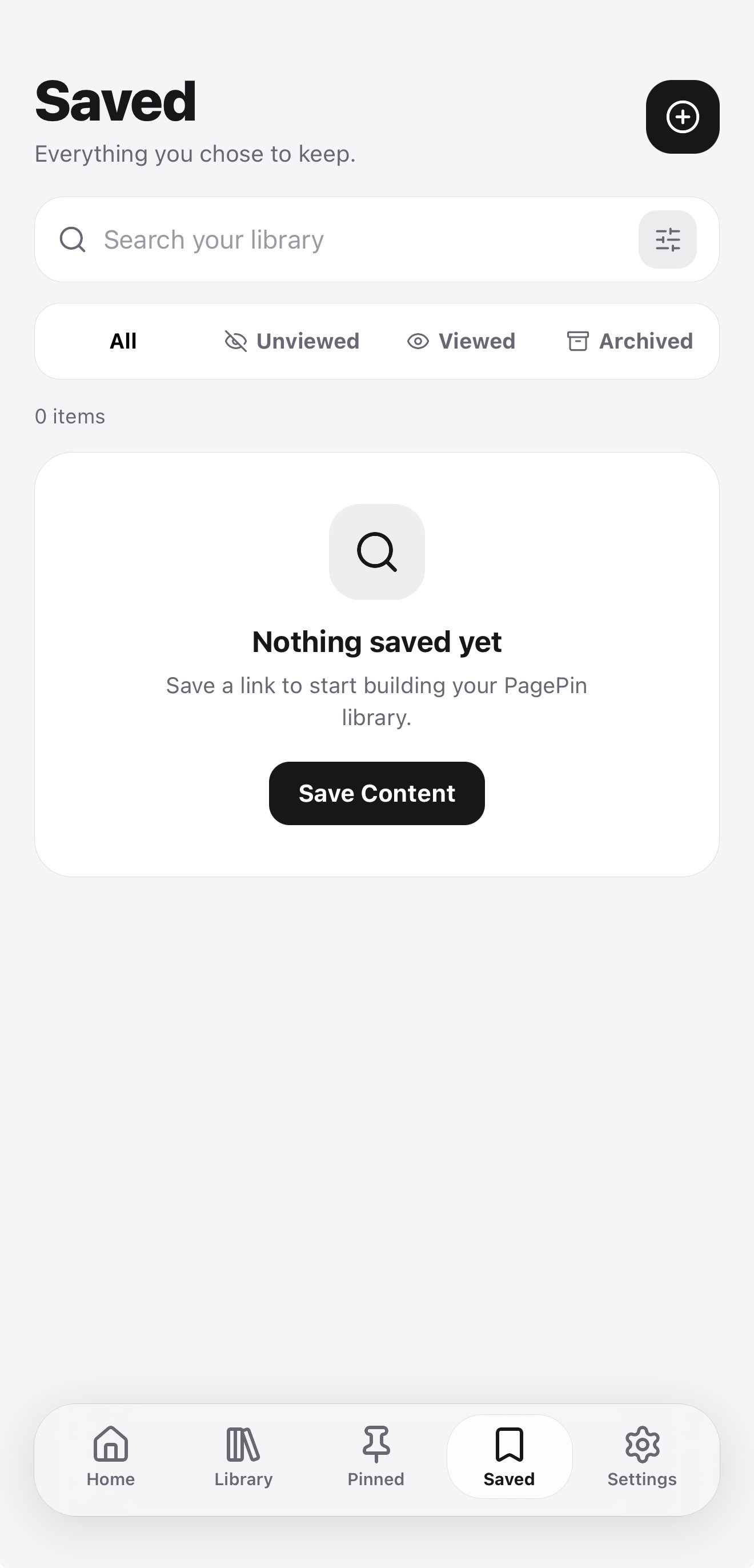
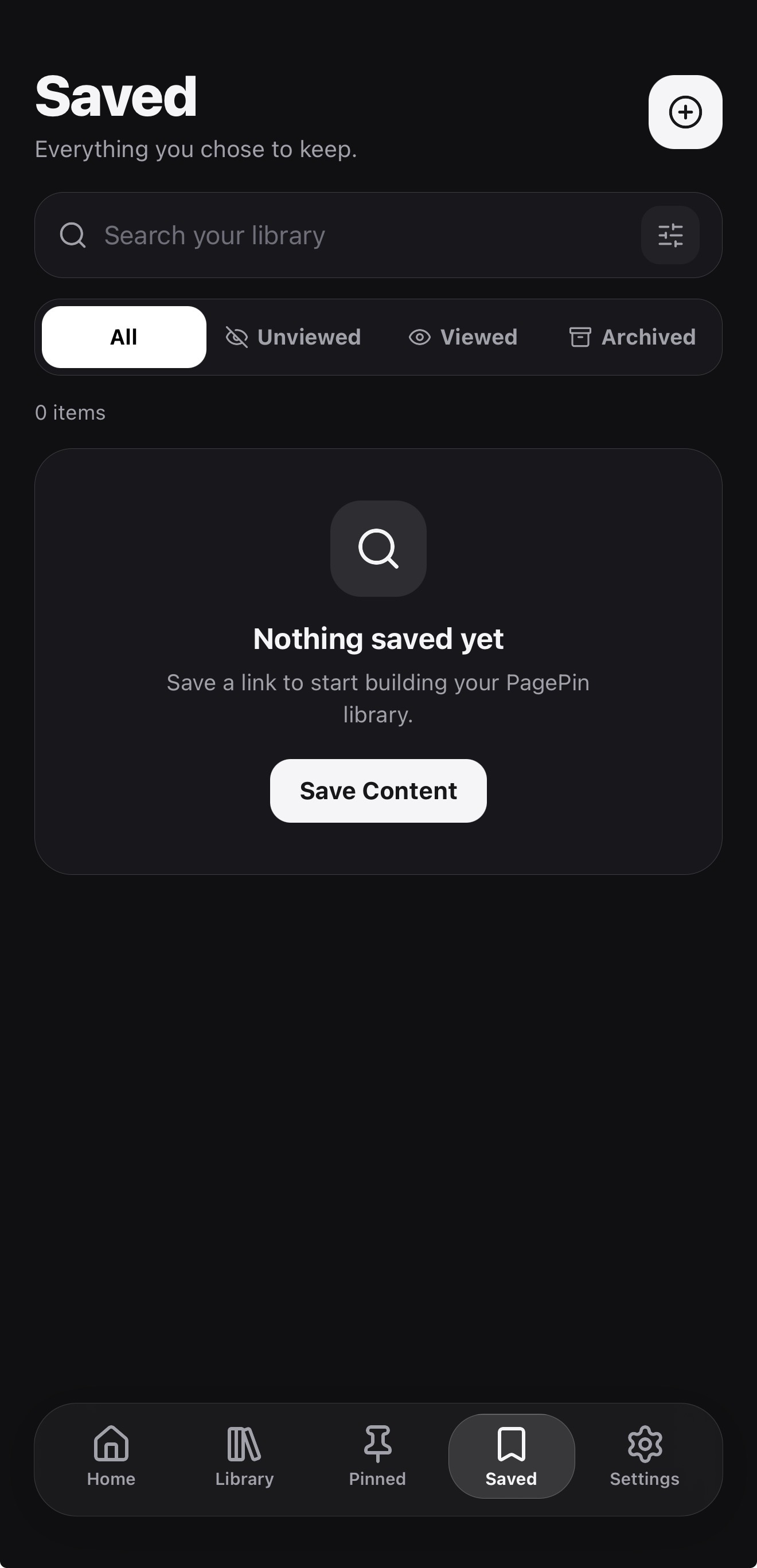
Search your library, add notes for context, and filter saved items by Viewed, Unviewed, or Archived.
Read now. Return later.
Open links inside PagePin or in your browser. For supported webpages, switch to Reader Mode and save an offline Reader copy on your device.
Remember to come back.
Set a reminder for something you want to revisit. PagePin uses local notifications when you allow them.
Find it. Save it. Make it yours.
Save a link.
Share a URL to PagePin from another app, or paste it directly.
Add a little order.
Choose a Collection, pick a Category, or add a note.
Come back when it matters.
Pin your favorites, search your library, or set a reminder.
Room for your ideas. On iPhone and iPad.
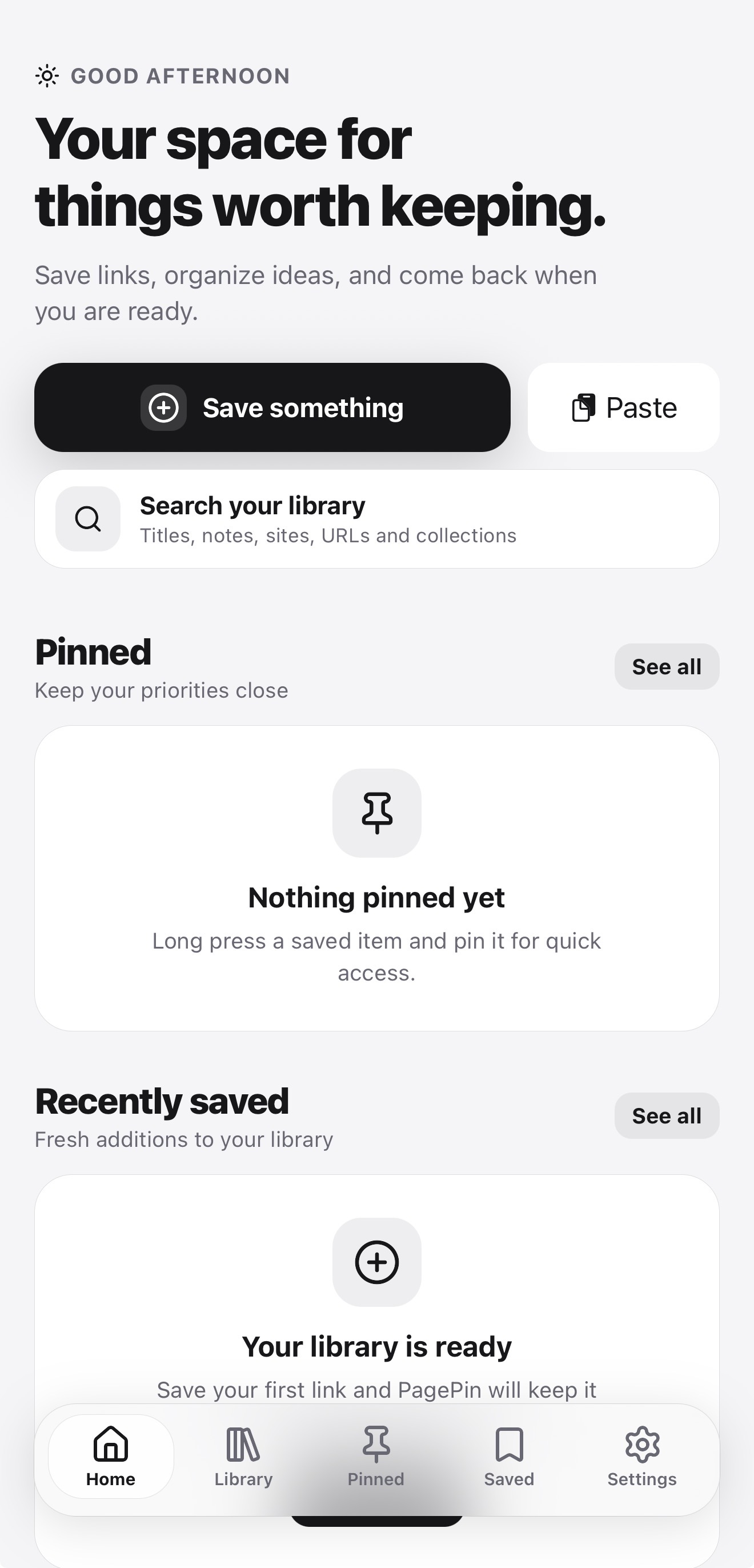
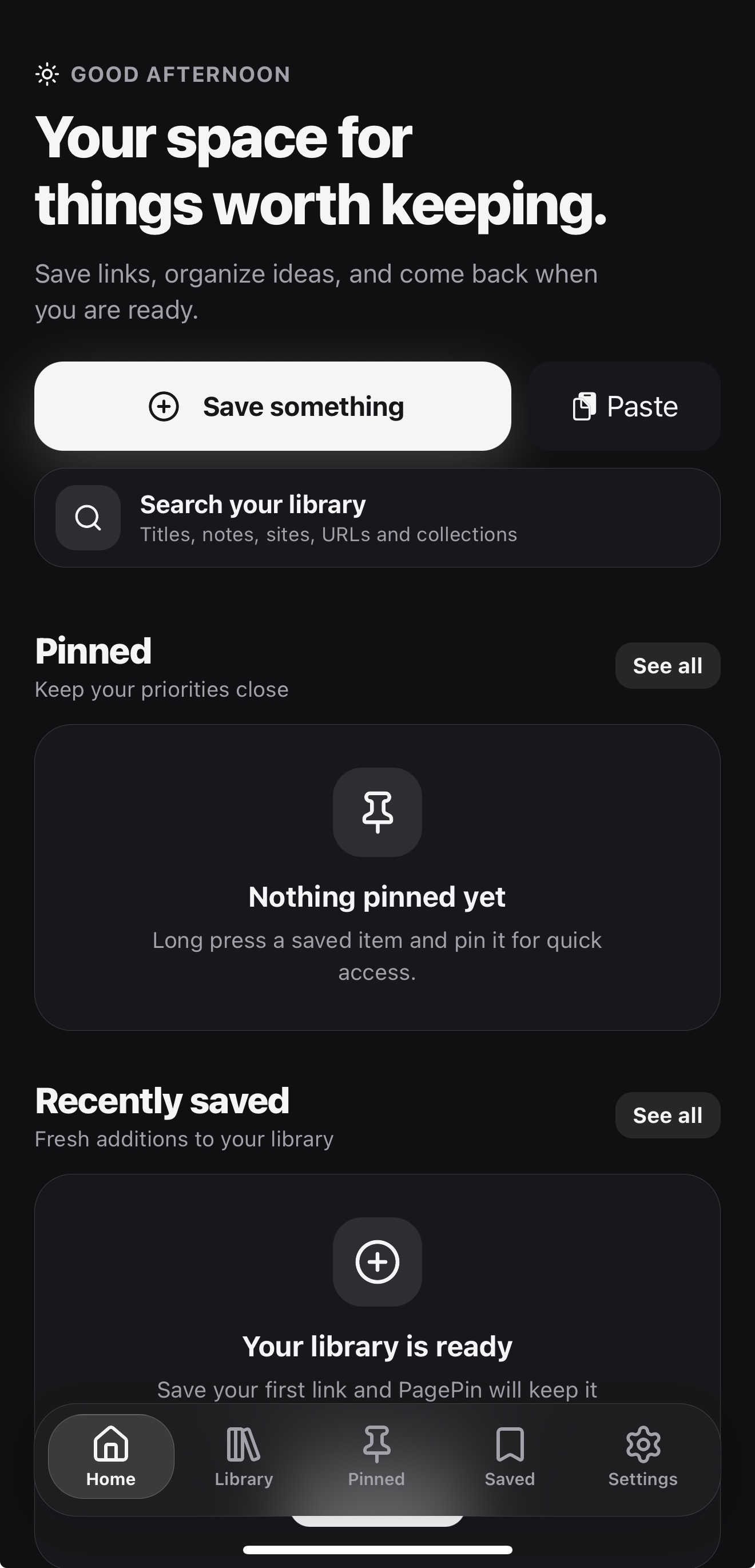
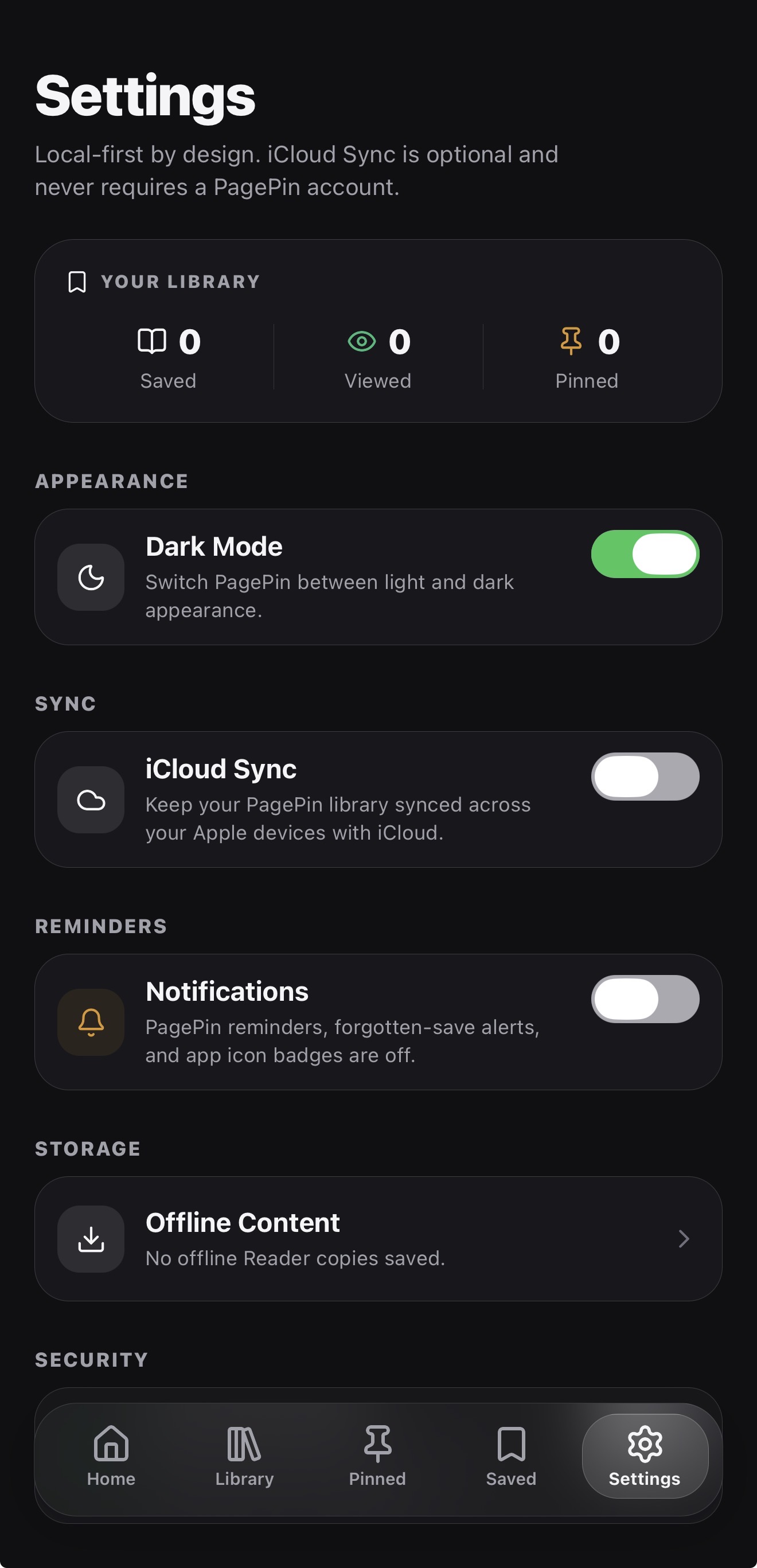
Keep your library close on your phone and give it more room on your iPad. PagePin adapts to the available screen space, with light and dark appearances to suit you.
Your library starts on your device.
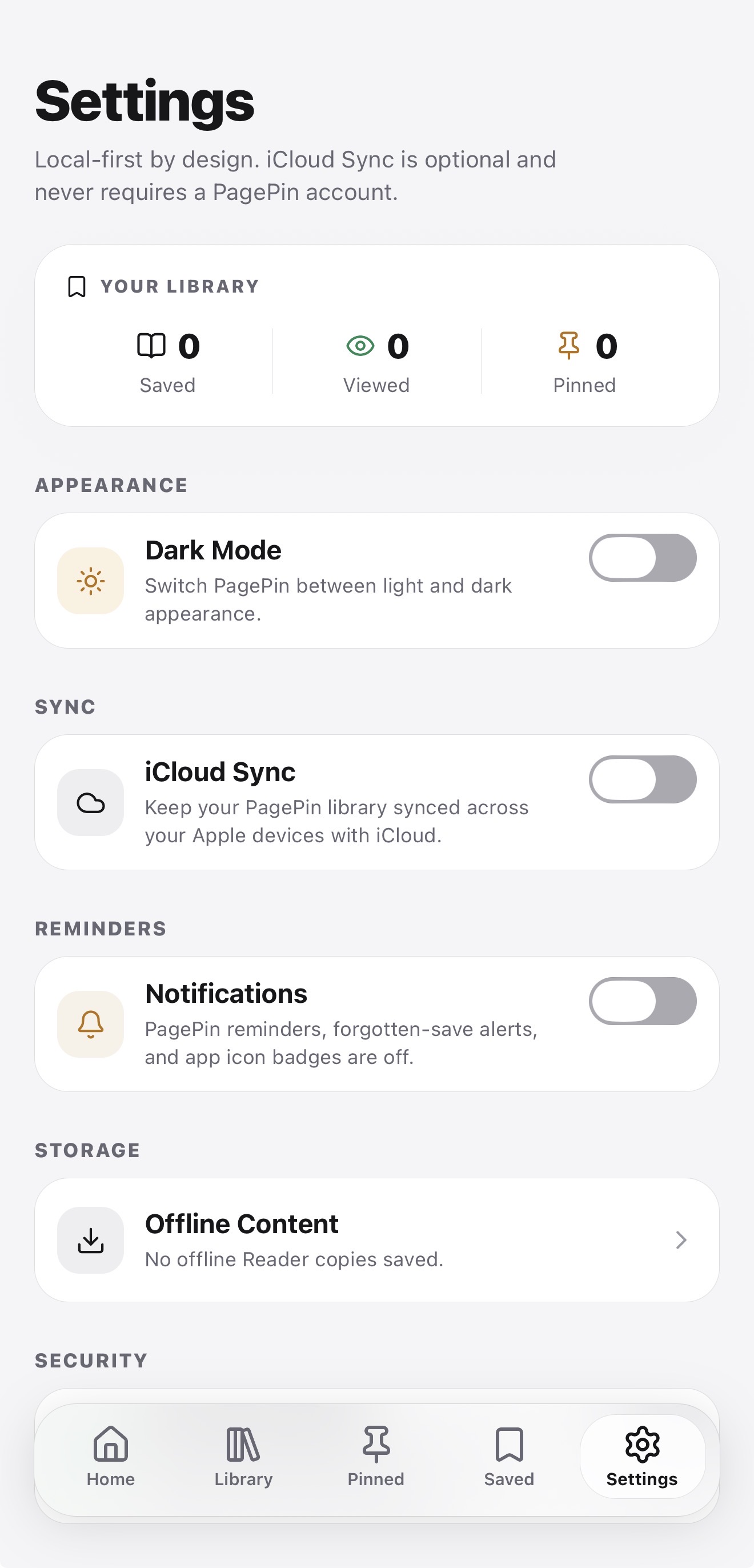
Start saving without creating a PagePin account. Turn on optional iCloud Sync to keep supported library data in sync across your Apple devices. Offline Reader copies stay on the device where you save them.
Add an extra layer of protection with optional Face ID or Touch ID on supported devices.
Read our Privacy PolicyStarts on your device
Save straight away — no PagePin account needed to begin.
Optional iCloud Sync
Keep supported library data in sync across your Apple devices.
Optional App Lock
Add Face ID or Touch ID protection on supported devices.
Questions, answered.
Yes. The current version of PagePin is free to use.
No separate PagePin account is required. Optional iCloud Sync uses the iCloud account already signed in on your Apple device.
Links to websites, articles, videos, social posts, products, tools, and other online content. PagePin saves the link and available metadata; saving a video link does not download the video.
You can browse locally stored library information. Supported webpages can also be saved as offline Reader copies. Opening the original website or streaming a video still requires an internet connection.
If you enable iCloud Sync, supported library records can sync across Apple devices using the same iCloud account. Offline Reader copies remain on each device and need to be saved separately.
Yes. Add custom Categories alongside the built-in options and choose an icon for each. Removing a custom Category does not delete the saved items assigned to it.
Yes. Choose Open Externally in the in-app browser. The link opens in an appropriate installed app when supported, or in your browser.
Keep the links. Lose the clutter.
A place for the things you want to find again.